> For the complete documentation index, see [llms.txt](https://espergames.gitbook.io/feel-speak/llms.txt). Markdown versions of documentation pages are available by appending `.md` to page URLs; this page is available as [Markdown](https://espergames.gitbook.io/feel-speak/general/input.md).

# Input

Ensuring Feel Speak works with your input system.

Input handling is entirely up to you—you’re free to choose whichever input system best fits your needs.

## How it's Handled in the Demos

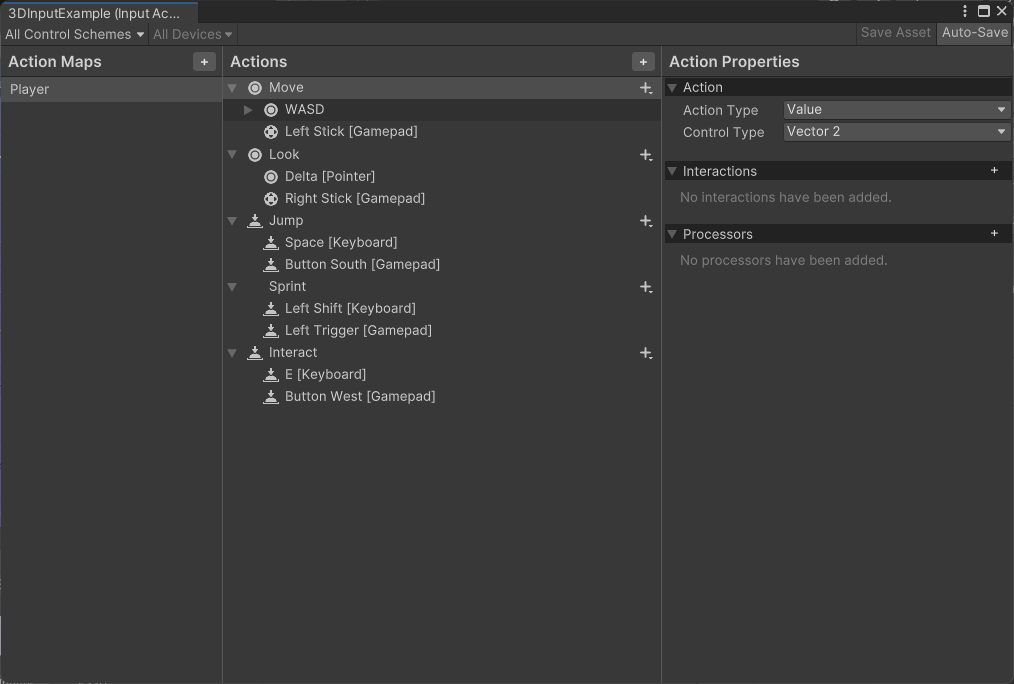
The demo's use Unity's new input system. You can open the Input Actions asset to see how input was handled—it should be beside the demo scene itself. The important input key is "Interact."

### 3D Demo

<figure><img src="https://1123894923-files.gitbook.io/~/files/v0/b/gitbook-x-prod.appspot.com/o/spaces%2Fi5EhvGPJLvE6Kc1rE7X5%2Fuploads%2FBtVegLSS2hx8384NzCoE%2Fimage.png?alt=media&amp;token=28dfd292-15be-4324-b7d3-33ebc136aaea" alt=""><figcaption></figcaption></figure>

The 3D demo has multiple input keys, most of which are for player movement.

This is the code that runs when the input button is pressed:

```csharp
public void OnInteract(InputValue value)
{
    if (FeelSpeak.HasActiveDialogue)
    {
        DialogueBox.Instance?.Next();
    }
    else
    {
        FeelSpeak.InteractWithClosestSpeaker();
    }
}
```

What this code does is simply move on to the next dialogue text if there is active dialogue. Otherwise, it will interact with the closest speaker if the player is currently in range of one.

<div><figure><img src="https://1123894923-files.gitbook.io/~/files/v0/b/gitbook-x-prod.appspot.com/o/spaces%2Fi5EhvGPJLvE6Kc1rE7X5%2Fuploads%2FzMs8ZuVSbZ3GAhwpFamx%2Fimage.png?alt=media&amp;token=8c8e8cb6-f5e0-40b7-84c9-3fe3a203414c" alt=""><figcaption></figcaption></figure> <figure><img src="https://1123894923-files.gitbook.io/~/files/v0/b/gitbook-x-prod.appspot.com/o/spaces%2Fi5EhvGPJLvE6Kc1rE7X5%2Fuploads%2FtbmKaqGzI6BzRxpAogZV%2Fimage_2025-09-24_144945771.png?alt=media&amp;token=3a91d301-d0b2-4bba-8a9f-4276e5540ca0" alt=""><figcaption></figcaption></figure></div>

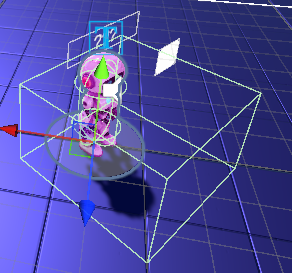
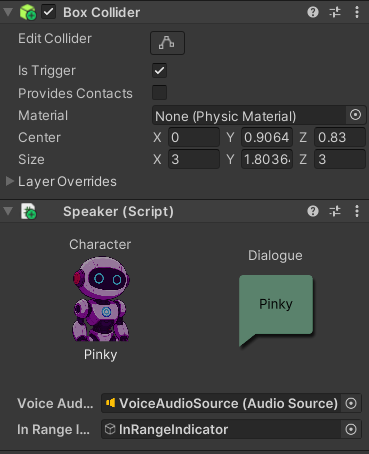
The Speakers are given a collider with **Is Trigger** enabled. This allows Feel Speak to know if the player is currently in range of a Speaker.

### 2D Demo

<figure><img src="https://1123894923-files.gitbook.io/~/files/v0/b/gitbook-x-prod.appspot.com/o/spaces%2Fi5EhvGPJLvE6Kc1rE7X5%2Fuploads%2FWHthRhyA4Q15NNl5OU3X%2Fimage.png?alt=media&amp;token=f5eaf0f1-a6fc-4a50-b0fd-299641258ee8" alt=""><figcaption></figcaption></figure>

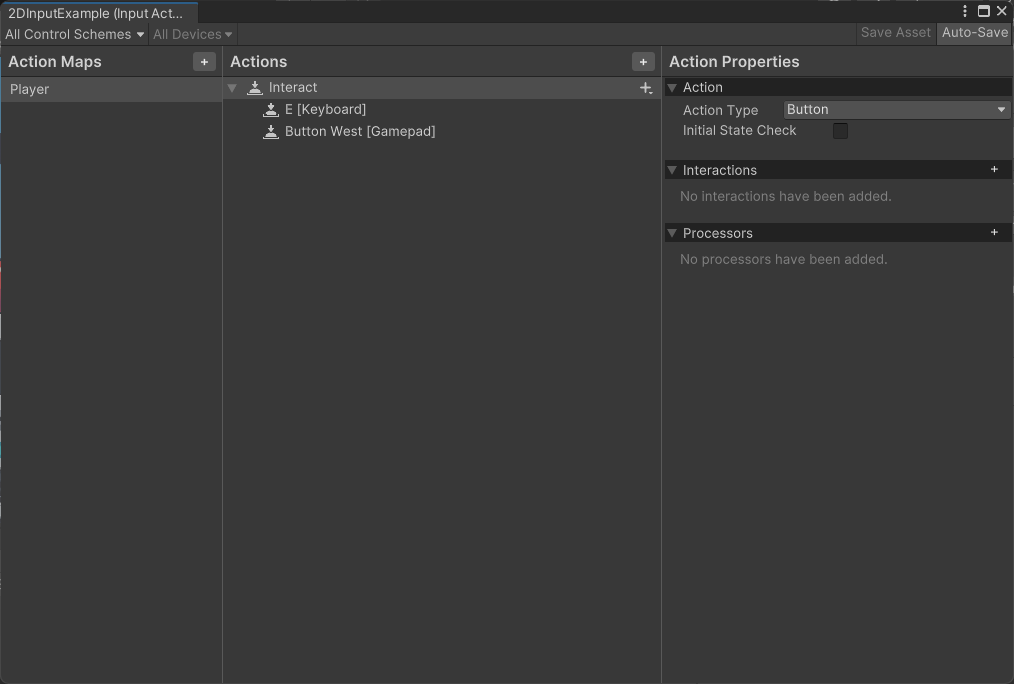
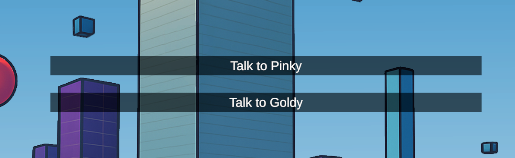
The 2D demo only has one input key because there no player movement—it's a visual novel. It uses the same interact code as well. Because the player doesn't move, the NPCs don't have range detection set up.&#x20;

<div><figure><img src="https://1123894923-files.gitbook.io/~/files/v0/b/gitbook-x-prod.appspot.com/o/spaces%2Fi5EhvGPJLvE6Kc1rE7X5%2Fuploads%2FpIIUTbE07ZGMksIJpBnX%2Fimage.png?alt=media&amp;token=124a9de3-859f-474a-b69c-cb29fc9cf576" alt=""><figcaption></figcaption></figure> <figure><img src="https://1123894923-files.gitbook.io/~/files/v0/b/gitbook-x-prod.appspot.com/o/spaces%2Fi5EhvGPJLvE6Kc1rE7X5%2Fuploads%2FRxFxe93t7npFmOu3w3gi%2Fimage_2025-09-24_143349259.png?alt=media&amp;token=36490c38-e7b2-4e80-a9ae-f8c0d3ed442b" alt=""><figcaption></figcaption></figure></div>

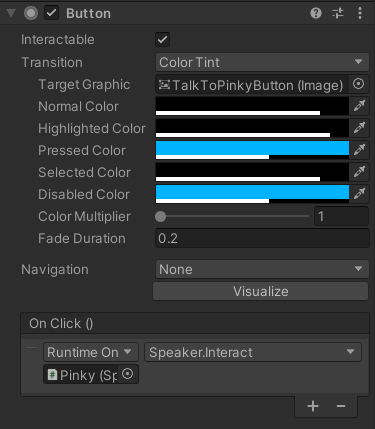
Talking to NPCs is handled through on-screen buttons that simply call a specific speaker's **Interact** method, which triggers dialogue with them.