> For the complete documentation index, see [llms.txt](https://espergames.gitbook.io/feel-speak/llms.txt). Markdown versions of documentation pages are available by appending `.md` to page URLs; this page is available as [Markdown](https://espergames.gitbook.io/feel-speak/components/speaker.md).
# Speaker
Going over the Speaker component.
The **Speaker** component should be added to any character that participates in dialogue. This is how Feel Speak connects a GameObject to a Character.
## Properties
| Name | Description |
| ------------------ | ------------------------------------------------------------------------------------------------------------------------------------------------ |
| Dialogue | The dialogue that is triggered when the speaker is interacted with. |
| Character | The assigned character. |
| Voice Audio Source | The audio source for the speaker's voice. |
| In Range Indicator | A GameObject that is enabled/disabled when the player character is in range of this speaker. This requires a collider with 'Is Trigger' enabled. |
## Detecting the Player
{% hint style="info" %}
This information is for games that feature a player character that can freely move around the game world.
{% endhint %}
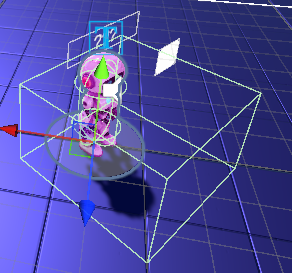
For Speakers to detect the player, they need a collider that acts as their speaking range. **The player character itself does not need this, only NPCs do.**
The collider must have its 'Is Trigger' toggle set on. **Both 2D and 3D collision is supported.** An example of this can be found in the 3D demo.
You can let Feel Speak know who the active player is through the [Feel Speak Initializer](/feel-speak/components/feel-speak-initializer.md) component or [through code](/feel-speak/scripting/initialization.md).
## If You're Using Animations
If you're using animations, make sure the character has an **Animator** component either on the same game object as the **Speaker** component or on one of its children.
In the [Emotions](/feel-speak/editors/object-manager/emotions.md) section, you can set the path of the animation state that should be triggered when this emotion is expressed. Ensure your character's **Animator Controller** has the specified states. This will allow your emotion animations to trigger.
## If You're Using Voice Lines
If you're using voice lines, it's recommended to set up an **Audio Source** that serves as the character's voice. The audio source must be assigned to the speaker component.
If you're using 3D audio, consider positioning the `AudioSource` near the character's mouth area to make the voice sound like it's coming out from there.
## If You're Using the Emotion Bubble
If you're using [Emotion Bubble](/feel-speak/components/ui/emotion-bubble.md), it's recommended to assign one to each [Speaker](/feel-speak/components/speaker.md) as a child game object. Each emotion bubble includes a point anchor that controls where the bubble's pointer is directed. Be sure to position the point anchor in a location that makes sense—typically near the character's head or face.
Optionally, you can assign emotion bubbles at the [Dialogue Speaker](/feel-speak/components/ui/dialogue-speaker.md) level instead of the individual [Speaker](/feel-speak/components/speaker.md) level. This approach is demonstrated in the 2D demo scene.
## Interacting With Speakers
How the player can interact with speakers depends on your game. See [Input](/feel-speak/general/input.md).